Activating Dashboard Service
Overview
Dashboard is a Weincloud service that visualizes and monitors HMI operational data and metrics. To activate Dashboard for an HMI, you must first add the HMI to a Domain, then complete activation using an activation card or a free trial. Once activated, you can view the HMI's Dashboard activation status, tag usage, and activation card information in the Directory. This document describes the prerequisites, the full activation procedure, and the information you can view and manage after activation.
Use Cases and Target Audience
This document is intended for administrators who have created a Domain on Weincloud and have folder management permissions. Refer to this document when you need to:
- Add an HMI to a Domain, or activate Dashboard for an HMI that is already in a Domain.
- Activate Dashboard using an activation card, or start a 3-month (90-day) free trial.
- View, expand tags for, or deactivate the Dashboard of an already activated HMI.
Feature Details
Prerequisite: Obtain the HMI's HW Key
Before activation, obtain the HMI's HW Key using either of the following methods:
- On the HMI, go to the System Settings > EasyAccess 2.0 page to view it.
- Read it from the system register LW-11210.
Activation Steps: Add HMI to Domain and Activate Dashboard
There are two scenarios, depending on whether the HMI has already been added to a Domain:
Scenario 1: The HMI Is Not Yet in a Domain
When adding a new HMI in the Directory, you can activate the Dashboard service at the same time; see Add HMI for the procedure. After choosing to activate the Dashboard service, select one of the following activation methods:
- Activation Code: Enter the HW Key and Activation Code to activate Dashboard. Before entering the code, use the search function to confirm it has not already been used.
- Trial: Enter the HW Key to start a 90-day trial immediately.
Scenario 2: The HMI Is Already in a Domain but Dashboard Is Not Yet Activated
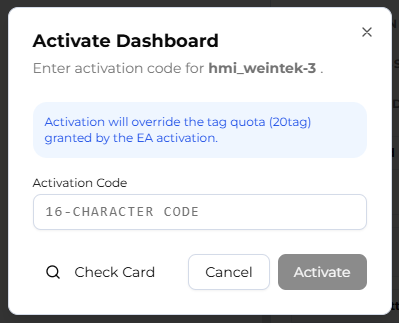
Select the HMI in the Directory, click Activate in the info panel on the right, and enter the Activation Code to complete activation. See the "Viewing Dashboard Information" section below for details.
Viewing Dashboard Information
Select a specific HMI in the Directory to view its Dashboard information in the panel on the right:
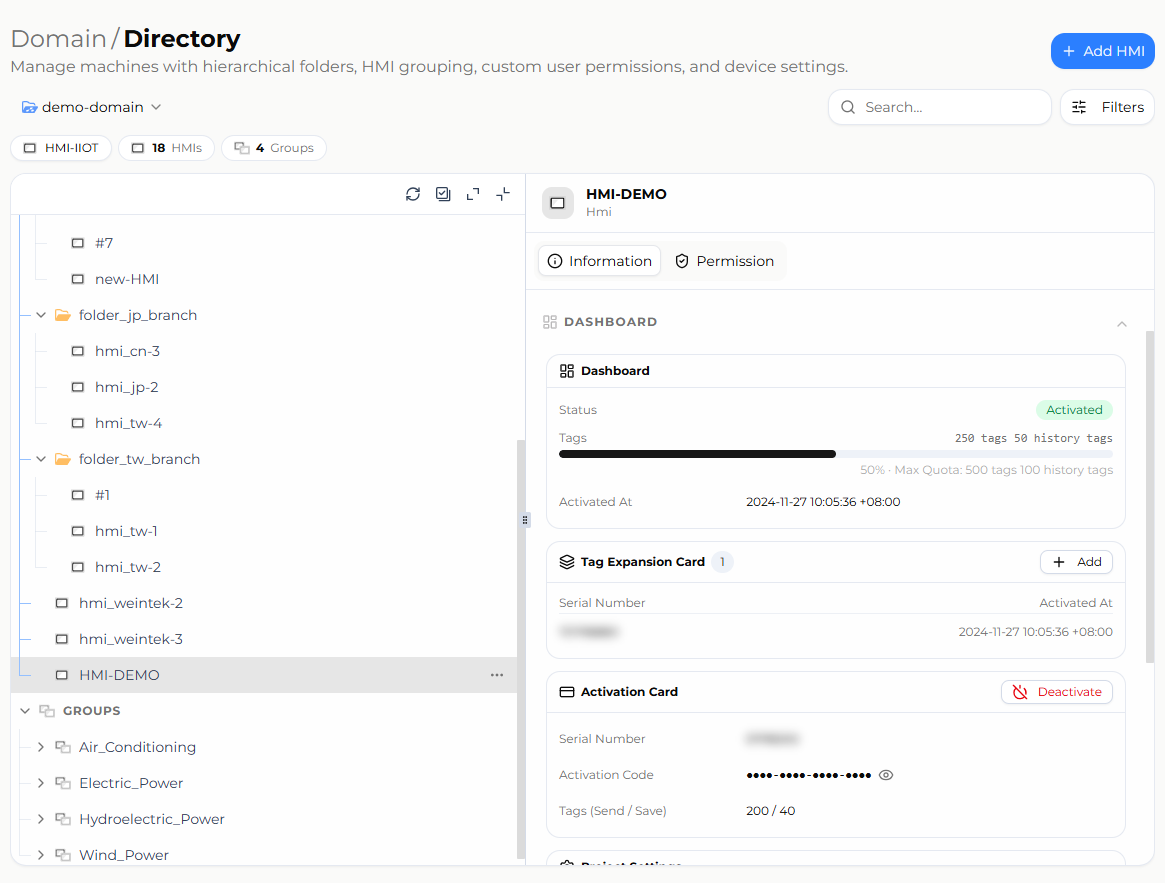
Dashboard
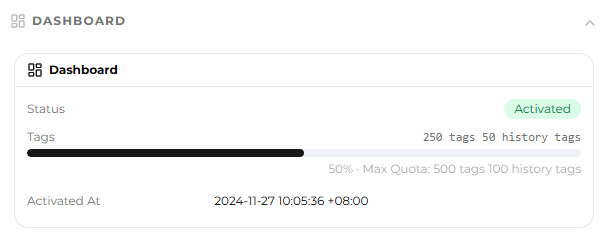
Status: Shows the HMI's activation status, either Not Activated or Activated. If not yet activated, click Activate and enter the Activation Code to complete activation.
Tag: Shows the current tag usage.
Activated At: Shows the date the HMI's Dashboard was activated.
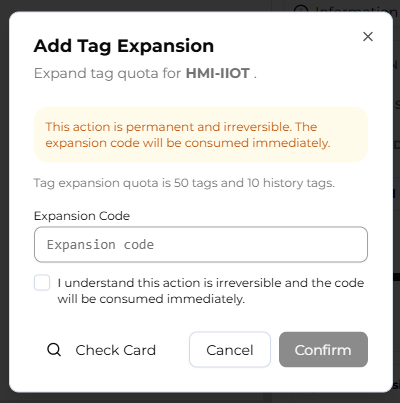
Tag Expansion Card
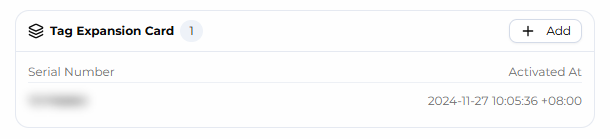
Serial Number / Activated At: If the HMI has undergone tag expansion, the expansion card's serial number and activation date are shown here.
Add: Click Add and enter the Expansion Code to expand the tags.
Activation Card
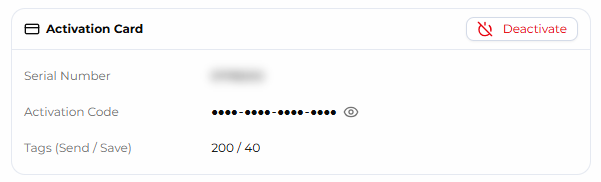
Serial Number / Activation Code: Shows the serial number and activation code of the currently activated activation card.
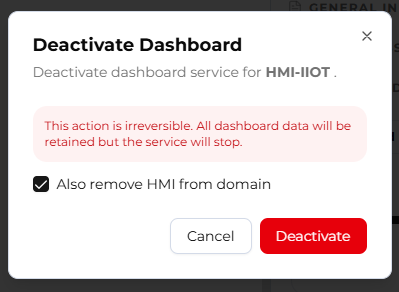
Deactivate: Click Deactivate and enter your User Password; you can then choose whether to also remove the device from the Domain.
Limitations and Notes
- Performing Deactivate requires the logged-in user to have Dashboard management permissions for that HMI.
- Before entering an activation card, use the search function to confirm it has not already been used.
- The free trial period is 3 months (90 days). When the trial expires, the HMI's Dashboard service is automatically deactivated.
FAQ
Q: How do I obtain the HMI's HW Key? A: View it on the HMI at System Settings > EasyAccess 2.0, or read it from the system register LW-11210.
Q: What are the ways to activate Dashboard? A: When adding a new HMI and activating Dashboard at the same time, you can activate it with an Activation Code, or start a 90-day free trial; both require the HMI's HW Key. If the HMI is already in a Domain but Dashboard is not yet activated, simply enter the Activation Code in the info panel — no HW Key is required.
Q: Does deactivating also remove the HMI from the Domain? A: When deactivating, you can choose whether to also remove the HMI from the Domain; it is not automatic.