Dashboard Data API
Overview
The Dashboard Data API is an Open API provided by Weincloud Dashboard that lets you access HMI tag data and alarm data programmatically, without going through the web interface. Using this API, tag history, latest values, and alarm records can be integrated into external systems — such as Power BI, Grafana, or a custom application — for data analysis, reporting, or cross-system monitoring.
The workflow consists of three stages: create an API key in Weincloud, authenticate by including the key in the HTTP request header, and call the corresponding API to retrieve data.
Use Cases and Target Audience
Typical use cases include:
- Importing HMI data into third-party BI or visualization tools to build custom reports or dashboards
- Programmatically retrieving tag history on a schedule for data analysis or backup
- Integrating alarm data into an existing operations notification or ticketing system
This API is intended for system integrators and developers familiar with calling HTTP APIs.
Permissions and Access Scope
Permissions Required to Manage API Keys
The API key management page appears in the left menu only for users with one of the following permissions:
- Domain Superuser
- Subdomain Superuser
- The folder-level Dashboard-Manage permission
When creating a key, the [User] list contains only the users the current account is allowed to manage, and defaults to the current user.
Data Accessible Through a Key
Every API key belongs to one specified user. The data accessible through a key matches the data that the user the key belongs to can view in Dashboard — not the permission scope of whoever created the key.
Each user can hold at most one API key. If a key already exists for the selected user, the creation dialog shows "This user already has an API key" and the key cannot be submitted; the existing key must be revoked first.
Creating and Managing API Keys
Opening the Management Page
In the left menu, go to the [Dashboard] group and click [Dashboard API Keys] to view and manage API keys.
The list places the current user's own key first by default and provides the following columns:
- [Name]: the key name entered at creation; sortable
- [Username]: the user the key belongs to; the current user's own key is tagged [You]
- [API Key]: the key value, masked with dots by default
- [Created At]: the date the key was created; sortable
- [Expiry]: shows [No expiry], the expiry date, the number of days remaining, or [Expired]; keys with 7 days or fewer remaining are highlighted; sortable
Creating an API Key
- Click [New API Key] in the upper right corner to open the [Create New API Key] dialog.
- Select the user the key belongs to in [User].
- Enter a name in [Key Name]; the maximum length is 32 characters.
- Select one of the following in [Expiry]:
- [1 year from now (default)]
- [No expiry]
- [Custom date]: specify an expiry date; the earliest selectable date is the next day
- Click [New API Key] to finish.
Once created, the key appears in the list and can be revealed at any time; there is no need to record it separately at creation time.
Viewing and Copying a Key
- Click the eye icon in the [API Key] column to reveal or mask the key value.
- Click the copy icon to copy the key to the clipboard. The copy icon appears only for the current user's own key; keys belonging to other users cannot be copied with this button.
Extending the Expiry Date
Click the clock icon at the right end of a key's row and select an extension: +1 Day, +30 Days, +180 Days, or +1 Year. The [Expiry] column updates immediately after a successful extension.
Revoking a Key
Click the trash icon at the right end of a key's row, then click [Delete] in the confirmation dialog to revoke the key. Revoking cannot be undone; once a key is revoked, every integration still using it loses access to the API, and a new key must be created and applied to the external system.
Search, Sorting, and Column Display
- The search box filters the list by key name or username.
- Click the [Name], [Created At], or [Expiry] column header to toggle ascending or descending order; drag the right edge of a column header to adjust its width.
- Click [More] to open a panel where columns can be selected under [Columns]; this panel also contains the [API Documentation] button.
- The bottom of the list controls the number of rows per page (10 / 20 / 50 / 100) and page navigation.
Authenticating with an API Key
Every call to an Open API must include the key in the HTTP request header:
X-API-KEY: {API key}Once authenticated, the call can access the data within the permission scope of the user the key belongs to.
Viewing API Documentation
Weincloud provides online API documentation listing all available APIs and their request formats:
- Global server documentation:
https://www.weincloud.net/open-api - China server documentation:
https://www.weincloud.net.cn/open-api
Alternatively, on the [Dashboard API Keys] page, click [More] → [API Documentation] to open the same documentation in a new tab.
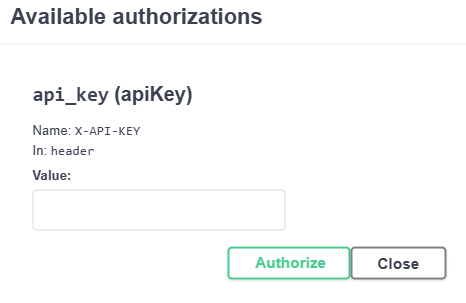
This page lists all available APIs. Click the Authorize button in the upper right corner to place an API key there for testing calls.

Enter the API key in the Value field to complete authorization.
Available APIs
The following APIs are currently available for retrieving dashboard data. For detailed request formats and parameters, see Viewing API Documentation.
Get Tag Properties
GET /dashboard/api/v2/open_api/hmi/{hw_key}/tags
Retrieves all tag information for the specified HMI, including tag name, data type, unit, and other properties.
Get Tag History
POST /dashboard/api/v2/open_api/history
Retrieves historical data for the specified tags. A time range and sampling method can be specified, making it suitable for trend charts or data analysis.
- History data for multiple tags can be retrieved in a single request, each with its own sampling method (average, sum, maximum, minimum, etc.)
- This API is subject to a data limit; see Limitations and Notes
Get Latest Tag Values
POST /dashboard/api/v2/open_api/latest
Retrieves the latest values for the specified tags, suitable for real-time monitoring or dashboard display.
- Latest values for multiple tags can be retrieved in a single request
- This API is subject to a data limit; see Limitations and Notes
Get Alarm Categories
GET /dashboard/api/v2/open_api/alarms/categories
Retrieves the list of all alarm categories in the system, for alarm management and category queries.
Get Alarm Rules
POST /dashboard/api/v2/open_api/hmi/{hw_key}/alarms/rules
Retrieves the alarm rule configuration for the specified HMI, including trigger conditions, alarm levels, and other information.
Get Alarm History
POST /dashboard/api/v2/open_api/hmi/{hw_key}/alarms/history
Retrieves alarm history for the specified HMI. A time range and filter conditions can be specified, for alarm tracking and analysis.
Limitations and Notes
To ensure system stability, the API for retrieving tag history is currently subject to the following limits.
Maximum of 4,320 Records per Request
- In the trend chart's real-time mode, data is retrieved at a 5-second resolution, so a single request can retrieve at most 6 hours of data: 60 seconds × 60 minutes × 6 hours ÷ 5 seconds = 4,320 records.
- When Aggregate Mode is enabled, data is retrieved at the [Window Size] resolution instead; for example, with a 1-minute window size, a single request can retrieve at most 3 days of data: 60 seconds × 60 minutes × 24 hours × 3 days ÷ 60 seconds = 4,320 records.
When this limit is exceeded, any of the following approaches can be used:
- Narrow the time range to stay within the limit
- Enable Aggregate Mode and increase the [Window Size] to reduce the amount of data retrieved per request
- Split the time range into multiple segments, retrieve each segment separately, and merge the results
Traffic Limit per HMI
A single HMI can retrieve approximately 100 MB of data within any 15-minute window; exceeding this limit will cause the request to fail.
Key Management Notes
- A key grants the data access rights of its owner. Treat it as confidential: do not commit it to public repositories or share it externally.
- Each user can hold only one key. Rotating a key requires revoking the old key before creating a new one, which interrupts the integrations in between.
- Calls made with an expired key fail. Extend the key before it expires, or select [No expiry] instead.
FAQ
[Dashboard API Keys] does not appear in the left menu. What should I do?
The page requires Domain Superuser, Subdomain Superuser, or Dashboard-Manage permission. Check the account's permissions or contact the Domain administrator.
Can multiple keys be created for the same user?
No. Each user can hold at most one key. To replace a key, revoke the existing key first, then create a new one.
What if the key value was not saved anywhere?
The key value is never lost: click the eye icon in the list to reveal it again at any time.
Why do some keys have no copy button?
The copy button appears only for the current user's own key. To hand a key to another user, have that user sign in and copy it themselves.
The key has expired. Can data still be retrieved?
No. Extend the expiry date, or revoke the key, create a new one, and apply it to the external system.