User
Overview
The User Management page gives Domain Superusers and Subdomain Superusers a complete set of tools to manage user accounts within their authorized scope: browsing and searching users, creating accounts, editing basic information and permissions, moving users between folders, managing passwords and account security, and handling issues such as pending verification, account lockout, or multi-factor authentication (MFA). Through folder-level scoping, administrators can restrict a user to a specific folder, ensuring that user can only access the HMIs they are authorized to see.
Use Cases and Intended Audience
This page is intended for administrators responsible for maintaining user accounts within a domain:
- Domain Superuser — can manage all folders and users across the entire domain, and can grant Domain Superuser permission to other users located at the root folder.
- Subdomain Superuser — can add, edit, move, and delete users within their authorized scope, and manage those users' social login settings, but cannot grant Domain Superuser permission to others. Certain account-security actions (such as unlocking an account or resetting MFA) are restricted to Domain Superusers only (see Advanced Administration). The Subdomain Superuser permission is fundamentally a folder (HMI) access permission: it is granted or revoked from the [Directory] page by setting a user's permission on a folder, not from this page. See Management by Subdomain for details.
Regular users can update their own email, company name, and password via the [Edit my profile] page, but cannot change their own username; all other actions require administrative permission.
Browsing and Finding Users
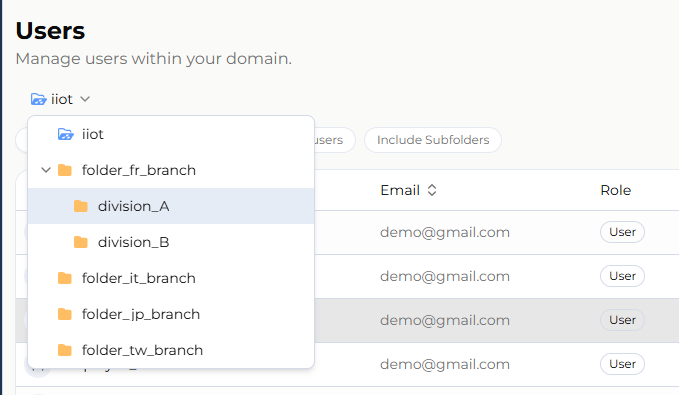
- Breadcrumb navigation — shows the current folder level. Click any level to switch the management scope, or use the dropdown next to each level to jump directly to a sibling folder without navigating up first.
- Folder display scope —
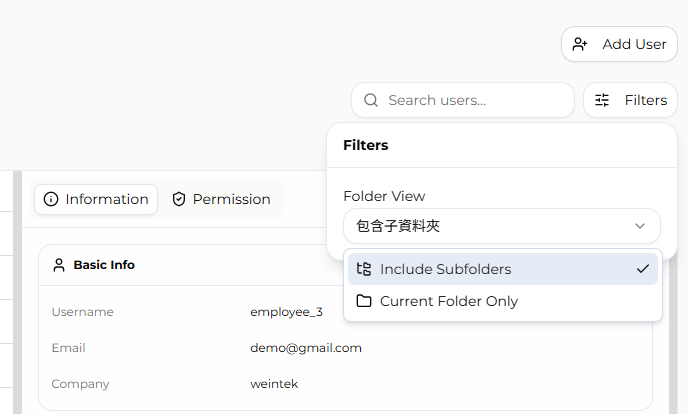
Toggle between "Include Subfolders" (lists users in the current folder and all its subfolders) and "Current Folder Only" (lists only users directly under the current folder). - Search — search users by username, email, or name.
- Sorting — sort by username, email, or creation date, in ascending or descending order.
Adding a User
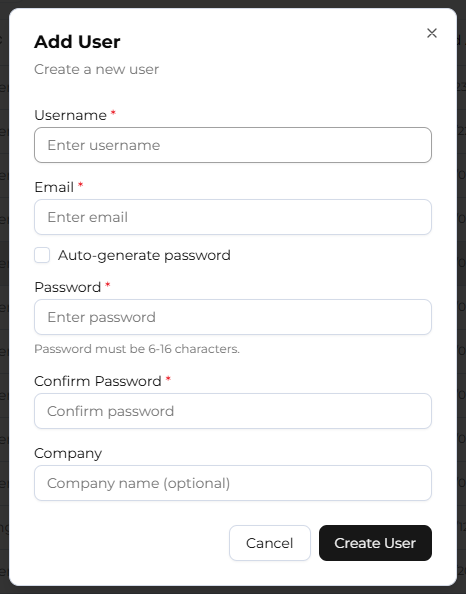
- Click the [+Add User] button, then enter the following information in the dialog:
- Username (required): 4–32 characters, letters, digits, and underscores only.
- Email (required): must be a valid email format.
- Password: check "Auto-generate password" to have the system generate one, or manually enter a password and confirmation. Password length is capped at 16 characters; the minimum length and allowed character rules vary by domain security policy. A live strength indicator (Weak / Fair / Good / Strong) is shown as a reference only.
- Company name (optional): up to 255 characters.
- The new user is created in the folder currently being browsed; if no specific folder is selected, the user is created at the domain root.
- The system sends the user a confirmation email; the user must click the link in the email to complete account verification.
Editing User Data
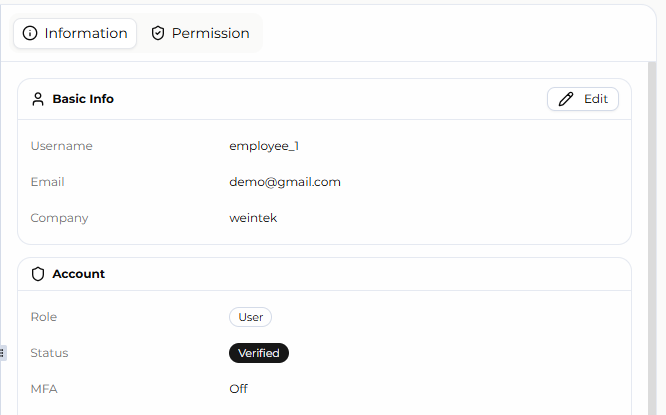
- Select a user in the user list, then click [Edit] to modify the user's basic information.
- Basic Information
- Username: editable only by a Domain Superuser, and never for one's own account.
- Email, company name: editable by both Domain Superusers and Subdomain Superusers, but not for one's own account on this page — use the [Edit my profile] page instead.
- Password changes are a separate function; see Password Management.
- Permissions and Role Settings:
- Domain Superuser: this option is only shown when the user resides directly under the domain root folder; it does not appear for users outside the root folder. When enabled, the user can manage all users and HMIs across the entire domain.
- Basic dashboard permission: a single toggle that, when enabled, allows the user to use the Dashboard Project and Simulation HMIs features.
Moving a User
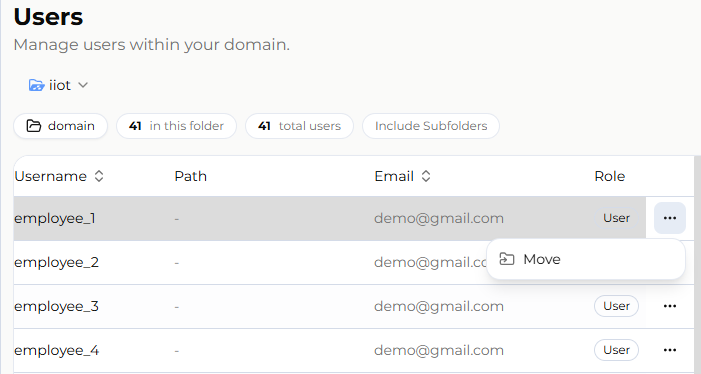
- Administrators can move a user to a selected folder. Once a user is restricted to a folder, they cannot monitor any folder or HMI outside of it, ensuring the user can only access their authorized scope.
- If the selected target folder is the same as the user's current folder, the [Move Here] button is disabled and a hint is shown that no move is needed.
- Because a Domain Superuser is by definition a user located at the domain root folder, a Domain Superuser cannot be moved to another folder. To move such a user, their Domain Superuser permission must first be revoked — making them a regular user or Subdomain Superuser — before the move can be performed.
Password Management
- Administrator resets a user's password — On the user detail page, click [Change Password], enter the administrator's own password to authenticate the action, then enter and confirm the new password. This action cannot be applied to the administrator's own account.
- User changes their own password — After logging in, click the user icon in the top-right corner, select [Edit my profile] to open account settings, then click [Edit Password] and enter the old password, new password, and confirmation to complete the change.
Advanced Administration
The following actions are available only to users with administrative permission; some are further restricted to Domain Superusers only:
- Activate an unverified user — for accounts that have not yet completed verification, an administrator can activate them manually.
- Unlock an account — available to Domain Superusers only, and only shown when the user's account is currently locked.
- Reset multi-factor authentication (MFA) — available to Domain Superusers only, and only shown when the user has MFA enabled.
- Clear social login links — available to both Domain Superusers and Subdomain Superusers; requires the administrator to enter their password to confirm before proceeding.
- View device details — switches to the [Directory] page and views that user's actual accessible device scope, helping administrators verify permission settings.
Deleting a User
- The user themselves — can request deletion of their own account from the [Edit my profile] page. This requires confirmation and takes effect only after a grace period (the "scheduled deletion" countdown shown in the UI), rather than immediately.
- Domain Superusers and system Admins — can delete any user account within the domain directly from the "Danger Zone" on the user detail page, taking effect immediately upon confirmation.
- Subdomain Superusers — can only delete user accounts within their own Subdomain (folder scope).
- To cancel a scheduled deletion, or for the full account deletion flow, see Account Settings – Delete Account.
Restrictions and Notes
- Users cannot change their own username, but can update their own email, company name, and password, or request deletion of their own account (subject to a grace period), via the [Edit my profile] page.
- The Domain Superuser setting only applies to users located directly under the domain root folder; it is hidden once a user is outside the root folder.
- A Domain Superuser can only exist at the domain root folder and cannot be moved directly to another folder; their Domain Superuser permission must be revoked first.
- Moving a user directly changes the folders and HMIs they can access; confirm the target folder before proceeding.
- The Subdomain Superuser role is granted or revoked from the [Directory] page by setting a user's permission on a folder, not from this page. See Management by Subdomain for details.