Directory
Overview
Directory is Weincloud's resource management system for centrally managing an organization's folders, members, HMI devices, and their access permissions. It goes beyond a simple folder hierarchy — it is a management platform that lets you configure fine-grained permissions at every level of a resource tree. From the Domain (root directory), administrators get a global view of all subresources and can assign permissions that cascade downward through inheritance, solving the problem of scattered resources and inconsistent permission control in large organizations.
Use Cases and Target Audience
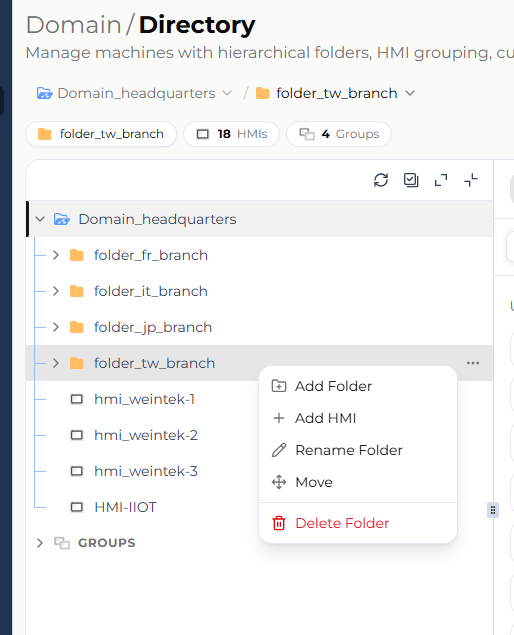
Directory follows a progressive architecture that scales from simple to complex. In its most basic, flat configuration, it already provides full folder, member, and HMI resource management and permission control; as an organization scales and needs to manage large numbers of HMI devices across teams, projects, or regions (as shown in the directory tree example below, with folder_tw_branch and folder_jp_branch), the same mechanism extends layer by layer through nested folders and permission inheritance to meet more complex management requirements.
Feature Details
Directory Structure
Domain (Root Directory)
The top-level directory for all resources. From the Domain level, administrators have a global view of all subdirectories and resources, facilitating unified management and monitoring. Permissions set at the Domain level can be inherited downwards to subdirectories and resources.
Folders
The core tool for organizing and managing resources. Folders can be nested to create a multi-level structure known as subdomains, allowing for finer control and management of resources. The depth of the folder structure is limited to a maximum of 10 levels.
Use case: Each folder can represent a project or team. In a large organization, such a structure can be used to define access permissions for different users or user groups.
Adding a Folder
Click on any folder layer, then click the "More" button or right-click to open the menu, and select "Add Folder".
Deleting a Folder
Click on the folder you want to delete, then click the "More" button or right-click to open the menu, and select "Delete Folder".
Renaming a Folder
Click on the folder you want to rename, then click the "More" button or right-click to open the menu, and select "Rename Folder".
Moving a Folder
Click on the folder you want to move, then click the "More" button or right-click to open the menu, select "Move", and choose the destination folder.
Member
Users assigned to a specific folder. Each user can belong to only one folder, which keeps the scope of permissions and responsibilities clearly defined, and is precisely controlled by that folder's administrator so members' access matches their role and responsibilities.
HMI
Managed devices. Each HMI device can be assigned to only one folder. Access and control permissions for HMI devices are set by the folder's administrator as needed, ensuring that only authorized users can operate or modify HMI device settings.
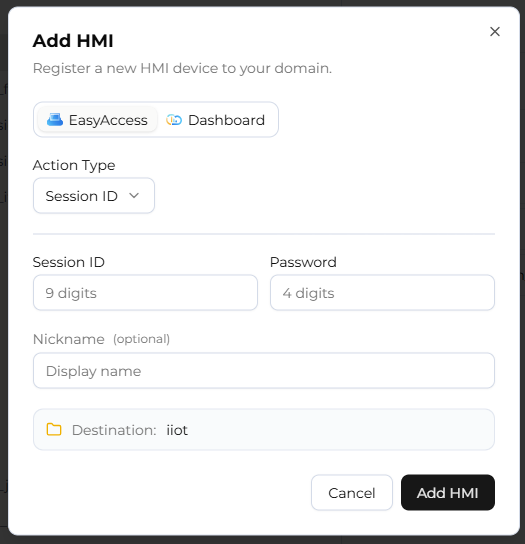
Adding an HMI to a Domain
Adds a new HMI device to the Domain. You can choose to activate either of the following services:
- EasyAccess 2.0: A remote access service that lets you connect to and control your HMI devices from anywhere via the internet.
- Dashboard: Provides a visual interface for monitoring and displaying data and performance indicators of HMI devices.
Information
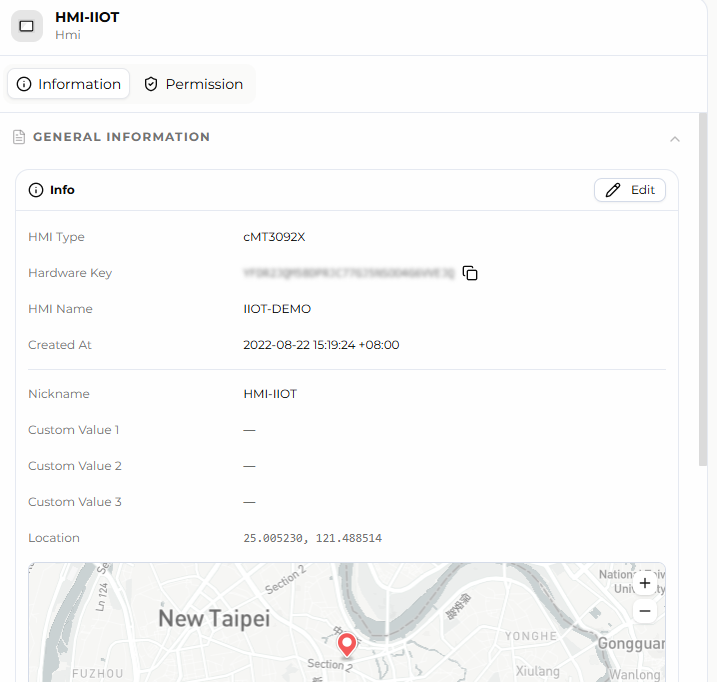
General
- Purpose: Displays information such as HMI model, Hardware Key, HMI name, and geographical location.
- Administrative operations: Administrators can edit the HMI's nickname and custom field values, and manually set the HMI's latitude/longitude. Geographical location can also be synchronized automatically via data source tags, as described in the Dashboard section below.
Removing an HMI from the Domain
Administrators can remove HMI devices that are no longer needed in the Domain. Steps:
- Select the HMI: On the Directory page, click the HMI you want to remove from the Domain.
- Remove the device: In the Information panel, find and click "Remove device from domain".
- Confirm removal: In the confirmation dialog, click "Remove" again to confirm.
After completing these steps, the HMI is removed from the current Domain.
Transferring an HMI to Another Domain
Administrators can transfer HMI devices to another Domain. Steps:
- Select the HMI: On the Directory page, click the HMI you want to transfer to another Domain.
- Initiate the transfer: In the Information panel, find and click "Transfer to another Domain".
- Enter the new Domain: In the popup dialog, enter the name of the destination Domain.
- Submit the request: After confirming the information is correct, click "Transfer" again to submit the request.
- Wait for approval: The destination Domain's administrator must approve the request before the HMI is transferred.
Note: Confirm with the destination Domain's administrator and obtain their consent before initiating a transfer request, to ensure the process goes smoothly.
EasyAccess 2.0
- Information shown: EasyAccess 2.0 activation status, public IP, private IP, project name, and network traffic (in bytes).
- Administrative operations: Users with EasyAccess 2.0 management permission can activate EasyAccess 2.0 or start a 30-day trial, and view the HMI project's event logs.
- WebConnect: A web-based EasyAccess 2.0 service. Users can use WebConnect to access HMIs that support EasyWeb or WebView, view the HMI screen synchronously via VNC, or customize web services.
Dashboard
Information shown: Dashboard activation status, tag usage, activation card information, and EasyBuilder Pro (EB Pro) project settings.
Administrative operations: Users with Dashboard management permission can start a Dashboard trial, add an activation card, or deactivate an active Dashboard subscription. Geographical location data can be synchronized automatically via data source tags, as described below.
Trial limit: Each HMI is eligible for a one-time Dashboard trial, valid for 90 days.
Tag quota by activation state:
- EasyAccess 2.0 activated only: 20 tags (0 historical tags).
- Dashboard trial: 100 tags (including 20 historical tags).
- Dashboard formally activated via activation card: 500 tags (including 100 historical tags).
- Tag Expansion Cards can also be purchased; each card adds 50 tags (including 10 historical tags) to the HMI.
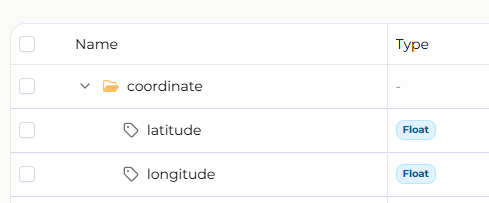
Automatic geographical location synchronization setup:
- In the HMI's data source, select the option to add a new folder.
- Name the new folder "coordinate".
- Within the "coordinate" folder, add two new tags.
- Name the first tag "latitude".
- Name the second tag "longitude".
- The data source tag names are case-sensitive and must be exactly "coordinate/latitude" and "coordinate/longitude".
- In the EB Pro project, confirm that the "latitude" and "longitude" tags are correctly linked to their respective data sources.
- Set the tag values so they can synchronize data from the connected data source.
Note: If an HMI model does not support the Dashboard feature, that HMI will not display any Dashboard-related information or actions.
Group
A method for grouping HMIs together for permission management. For new users, using groups is not recommended; adopting a folder structure is preferred, as it offers greater flexibility and finer control, making it more suitable for the requirements of complex organizations.
Directory Tree Example
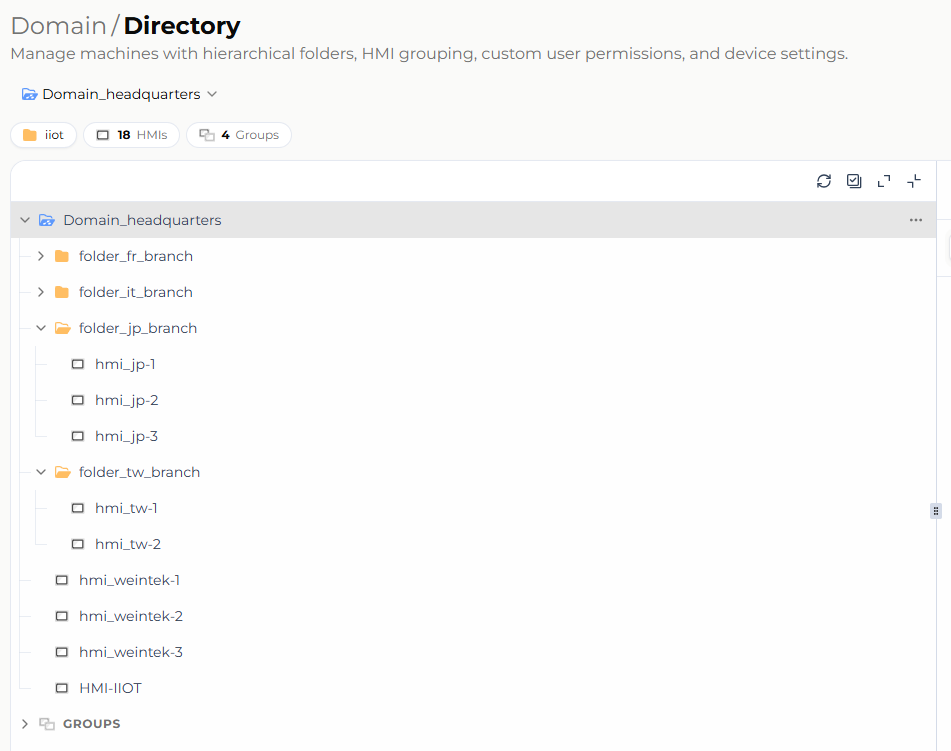
Domain_headquarters (Root Domain)
├─ folder_jp_branch (Subdomain)
│  ├─ hmi_jp-1
│  ├─ hmi_jp-2
│  ├─ hmi_jp-3
│  └─ member_jp (not shown as a node)
├─ folder_tw_branch (Subdomain)
│  ├─ hmi_tw-1
│  ├─ hmi_tw-2
│  └─ member_tw (not shown as a node)
├─ user_headquarters (not shown as a node)
└─ hmi_weintek-1
Note: Groups is a cross-folder permission-grouping mechanism, not a node in the folder tree, so it is omitted from this example. See the "Group" section above for details.
User Roles and Permissions
Roles
Admin/Superuser
- Has full control over the Domain (root directory).
- Can allocate resources and permissions.
- Adjusts member permissions based on organizational policies and security requirements to ensure the protection and proper use of folder resources.
Subdomain Superuser
- Manages specific folders and their subfolders.
- Has permissions similar to an Admin, but limited to specific folders and their contents.
- Can adjust member permissions based on organizational policies and security requirements.
User
- A general role whose permissions vary based on administrator configuration.
User Perspective Simulation
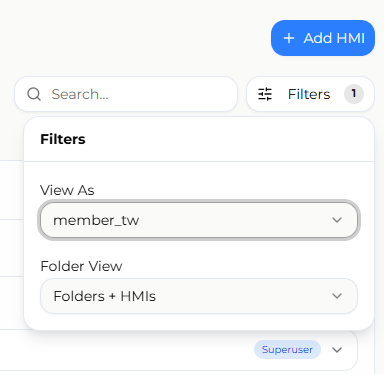
In the top-right corner of the Directory page, administrators can find a user menu that lets them view the system from the perspective of a specific user. This lets administrators see all the folders and HMI devices that user has permission to access, providing a clearer understanding of that user's permission scope.
Permission Explanation
Folder Permission Settings
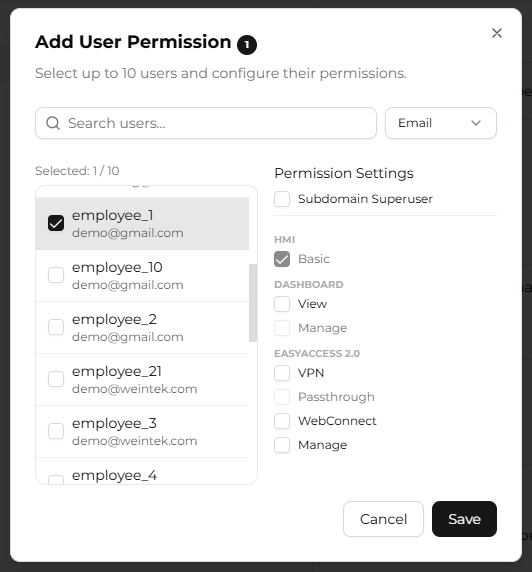
- Subdomain Superuser: Grants the user full management rights over the specific folder.
- HMI-Basic: The user can view basic information of HMIs within the folder.
- Dashboard-View: The user can view Dashboard information of HMIs within the folder.
- Dashboard-Manage: The user can manage Dashboard information of HMIs within the folder.
- EasyAccess 2.0-VPN: The user can establish a VPN connection with HMIs within the folder via the EasyAccess 2.0 app.
- EasyAccess 2.0-Pass-through: The user can use the pass-through feature of HMIs within the folder via the EasyAccess 2.0 app.
- EasyAccess 2.0-WebConnect: The user can use the WebConnect feature of HMIs within the folder in Weincloud.
- EasyAccess 2.0-Manage: The user has full EasyAccess 2.0 functionality for HMIs within the folder.
Individual HMI Permission Settings
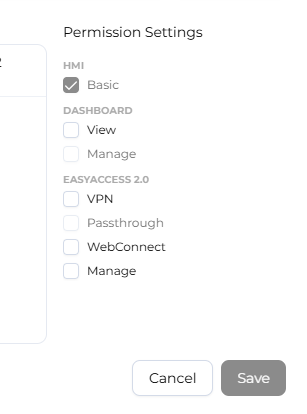
- HMI-Basic: The user can view basic information of the HMI.
- Dashboard-View: The user can view Dashboard information of the HMI.
- Dashboard-Manage: The user can manage Dashboard information of the HMI.
- EasyAccess 2.0-VPN: The user can establish a VPN connection with the HMI via the EasyAccess 2.0 app.
- EasyAccess 2.0-Pass-through: The user can use the pass-through feature of the HMI via the EasyAccess 2.0 app.
- EasyAccess 2.0-WebConnect: The user can use the WebConnect feature of the HMI in Weincloud.
- EasyAccess 2.0-Manage: The user has full EasyAccess 2.0 functionality for the HMI.
Inherited Permissions
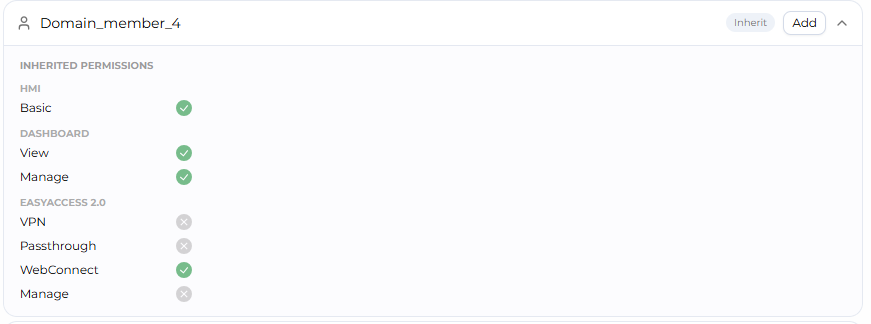
When an administrator sets permissions on a folder or for a user, those permissions are automatically inherited by all subfolders and HMI devices within that folder. Inherited permissions can be supplemented with additional permissions but cannot be revoked. For example, if user [User1] is granted the [Dashboard-View] permission on [Folder1], that user will have [Dashboard-View] permission on all subfolders and HMIs under [Folder1], and this permission cannot be revoked. This ensures consistency and ease of management.
Permission Setting Examples
Reusing the directory tree example above:
Domain_headquarters (Root Domain)
├─ folder_jp_branch (Subdomain)
│  ├─ hmi_jp-1
│  ├─ hmi_jp-2
│  ├─ hmi_jp-3
│  └─ member_jp (not shown as a node)
├─ folder_tw_branch (Subdomain)
│  ├─ hmi_tw-1
│  ├─ hmi_tw-2
│  └─ member_tw (not shown as a node)
├─ user_headquarters (not shown as a node)
└─ hmi_weintek-1- Folder member permission restrictions:
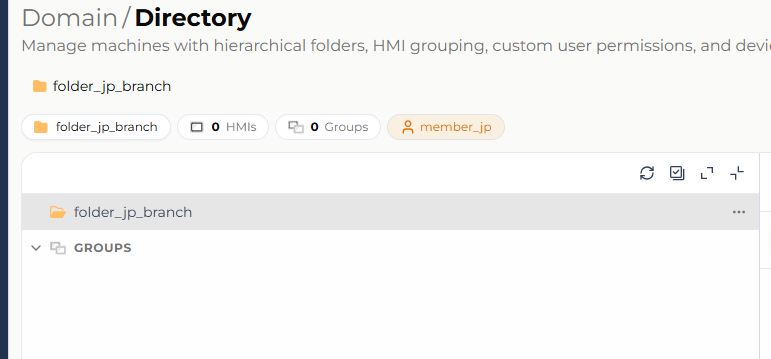
- After logging in, member_jp can only see their own folder and HMI.
- The root domain's Superuser or Admin cannot grant member_jp resources from other folders; member_jp can only be granted permissions for folder_jp and hmi_jp.
- If the "HMI-Basic" permission is not set, member_jp will not see any resources after logging in.
- User permission allocation:
- user_headquarters is not assigned to any folder, but is granted the "EasyAccess 2.0-WebConnect" permission on folder_jp. This user can use the WebConnect feature of all HMIs under folder_jp.
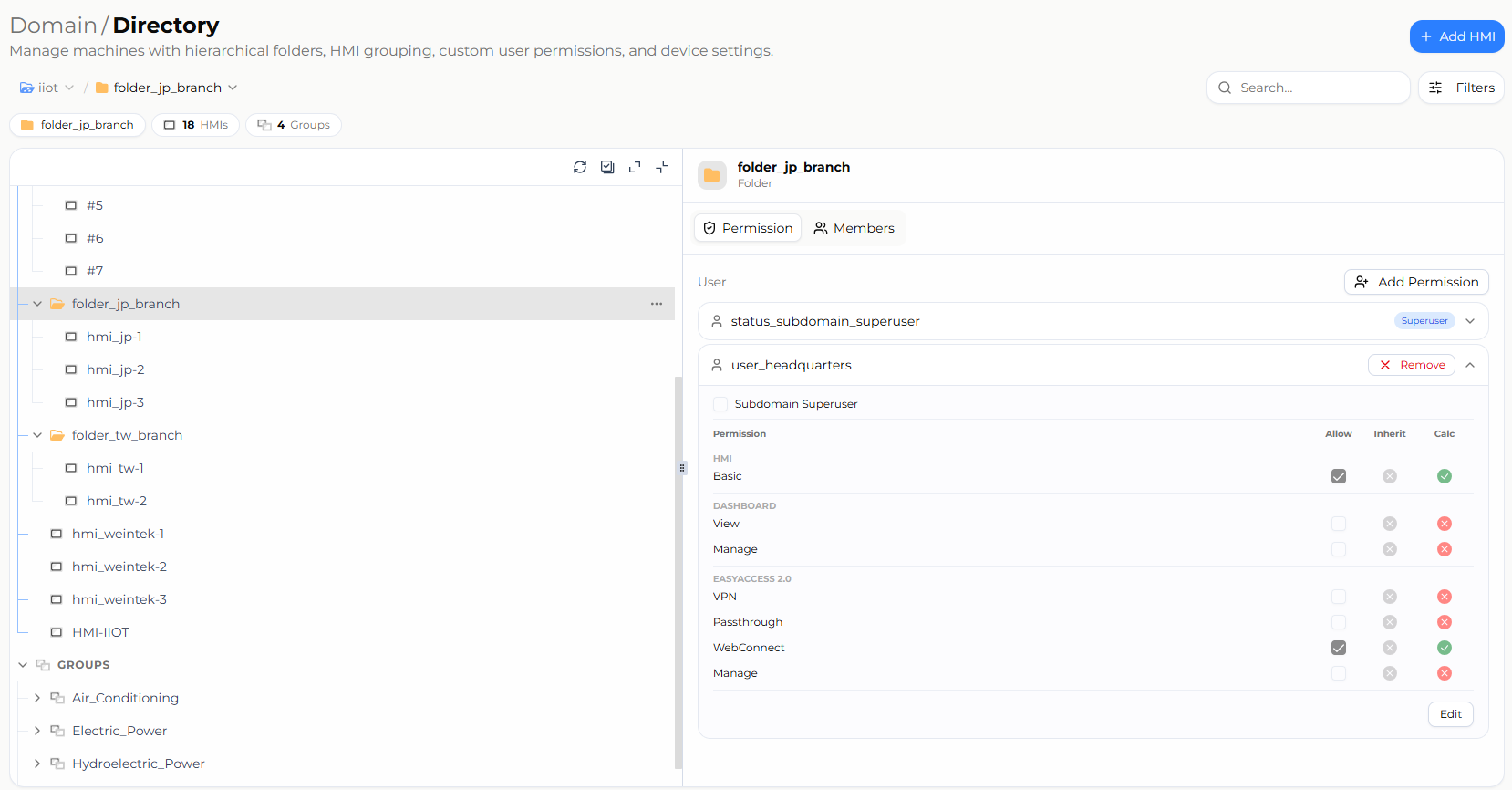
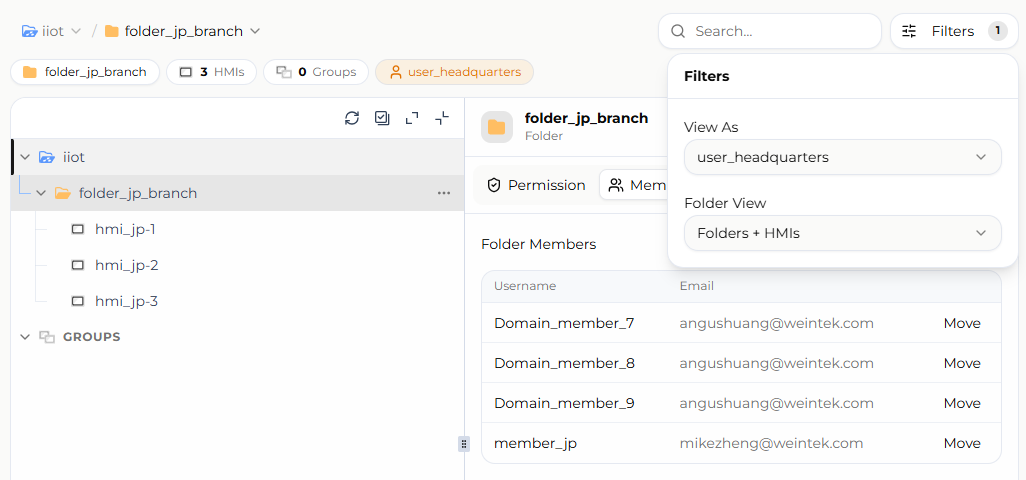
- user_headquarters is not assigned to any folder, but is granted the "EasyAccess 2.0-WebConnect" permission on folder_jp. This user can use the WebConnect feature of all HMIs under folder_jp.
Limitations and Notes
- The folder structure's nesting depth is limited to a maximum of 10 levels.
- Each user can belong to only one folder; each HMI can also belong to only one folder.
- If an HMI model does not support the Dashboard feature, that HMI will not display any Dashboard-related information or actions.
- Each HMI is eligible for only one Dashboard trial, valid for 90 days.
- Transferring an HMI to another Domain requires approval from the destination Domain's administrator before it takes effect.
- Groups is a legacy mechanism; new users are advised to manage resources and permissions using the folder structure instead.
- Inherited permissions can only be supplemented with additional permissions at lower levels — they cannot be revoked.
FAQ
Q: Should I use folders or Groups? A: Folders support a nestable, multi-level structure with fine-grained permissions at every level, offering greater flexibility. Groups is only a cross-folder mechanism for grouping HMIs. New users should prefer the folder structure for managing resources and permissions.
Q: Can I trial Dashboard more than once? A: No. Each HMI is eligible for only one Dashboard trial, valid for 90 days. After the trial ends or its tag quota is used up, an activation card is required to continue using Dashboard.
Q: After a permission is inherited, can I remove it at a subfolder? A: No. Inherited permissions can only be supplemented with additional permissions at lower levels; they cannot be revoked.