Map View
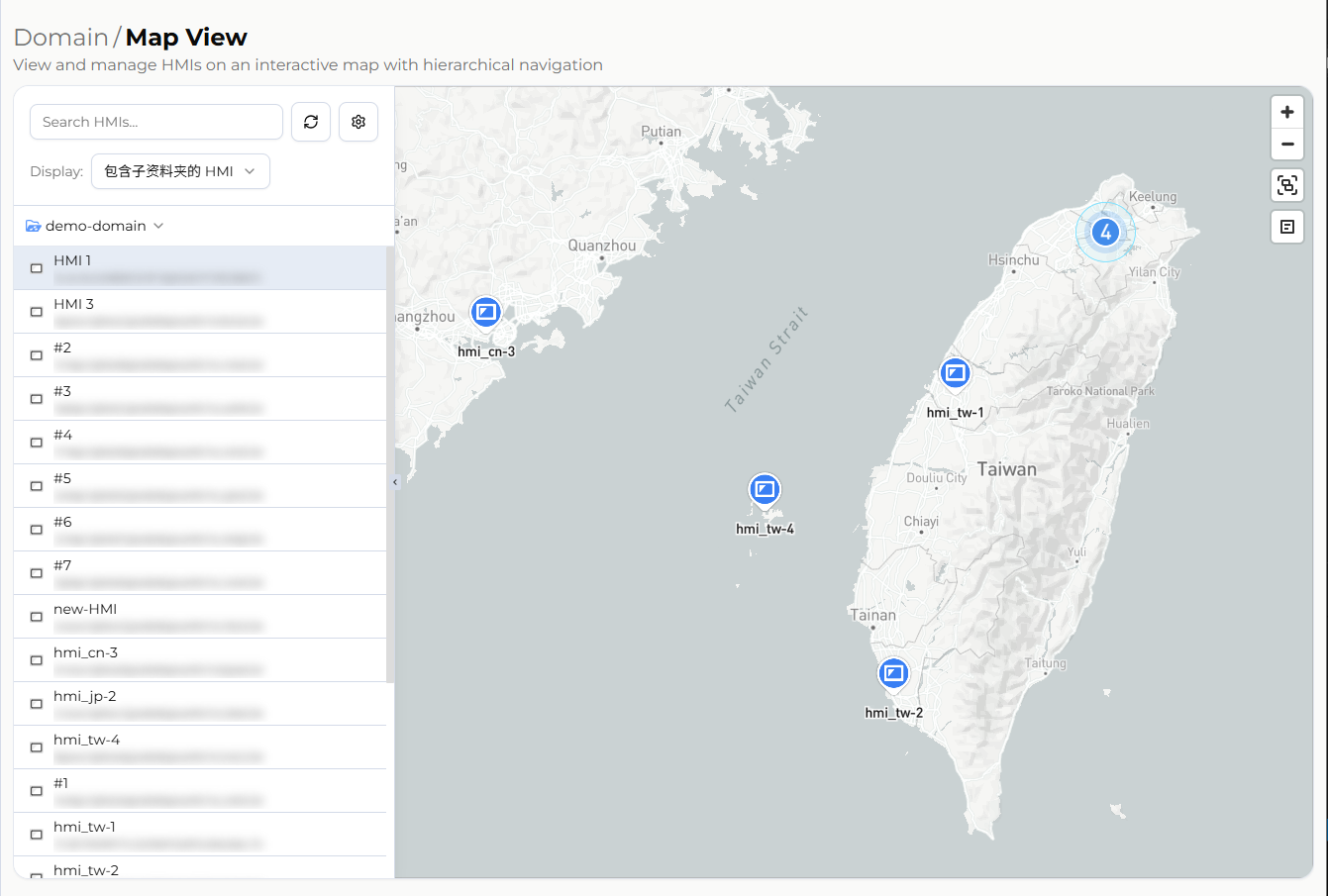
Map View is a geolocation-based visual management feature that positions HMI devices on a map according to their configured latitude and longitude. It helps administrators intuitively understand the geographic distribution of devices, view device information, and initiate remote connections directly from the map.
Use Cases
Intended for Domain / Subdomain administrators and operations staff who manage HMI devices distributed across multiple locations. Unlike the folder-based tree view in Directory, Map View organizes devices by geographic location, making it easier to understand device distribution within a specific area, filter devices within a target scope, and initiate remote connections for monitoring or maintenance.
Map View Interface Structure
Map Overview
The map is the core area of this page. It displays all HMI devices with configured latitude and longitude coordinates, helping administrators quickly identify device distribution.
- Clustering: When the map is zoomed out or devices are densely distributed, nearby HMI icons are automatically grouped into a single cluster icon showing the number of devices. Clicking a cluster zooms in and expands the individual devices.
Map Settings
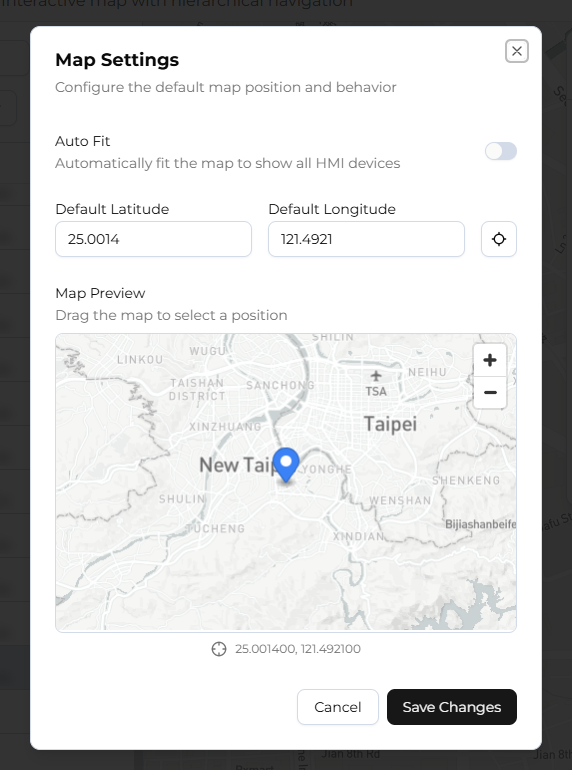
Default Center Point:
- Purpose: Defines the initial map position when the page loads.
- Configuration methods:
- Automatic: Uses the geometric center of all current HMI device coordinates as the default center point.
- Manual: Drag the map preview to the target location, or enter values directly in the Default Latitude and Default Longitude fields.
- Sync current location: Uses the browser's location feature to retrieve your current latitude and longitude and fill them in automatically.
- After saving, the map applies the new center point according to the selected mode.
HMI List and Search
The side panel provides an alternative way to locate devices.
- List View: Unlike the folder-based tree structure in Directory, Map View uses a flat HMI list, allowing faster browsing of all devices without folder-level restrictions.
- Filter: Users can enter keywords to quickly filter and locate specific HMI devices.
- Display Scope: Toggle between [Current Folder Only] and [Include Subfolder HMIs]. This setting applies to both the side list and the devices shown on the map.
Information Panel (Right Sidebar)
When a user clicks an HMI icon on the map or selects a device from the list, a detailed information panel opens on the right, divided into two tabs: [Information] and [WebConnect].
Basic Information
Located in the [Information] tab. Displays basic device details such as model, name, and status, consistent with the general information shown in Directory.
Data Source Monitoring
Also located in the [Information] tab. Presents HMI data tags in a table with columns for name, type, value, and time, and supports real-time data updates.
- Real-time Data: Tag values are updated and displayed in real time.
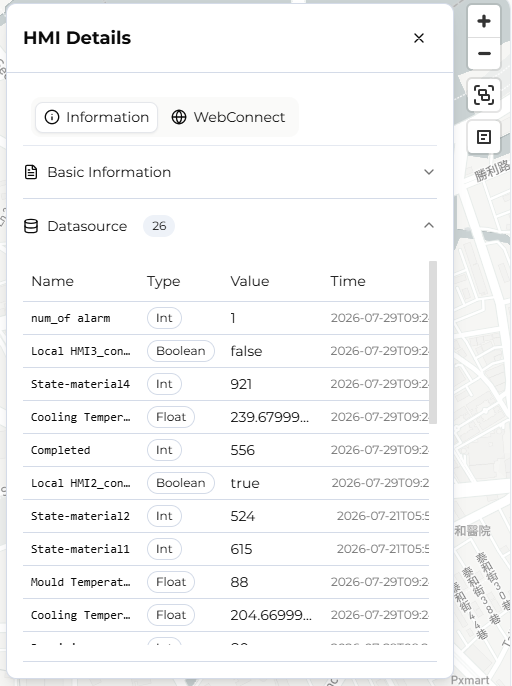
Note: Only HMI devices with an active Dashboard service display real-time values in this section. If the Dashboard service is not activated, this section will show no available data tags.
WebConnect Connection
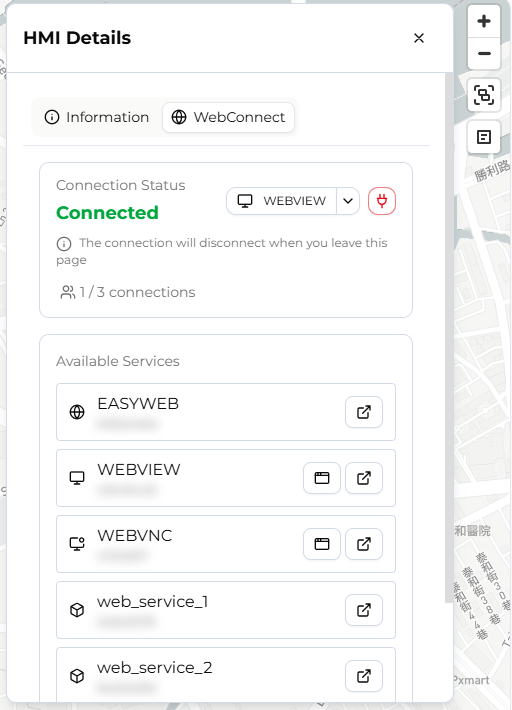
Located in the [WebConnect] tab. Integrates the WebConnect feature of EasyAccess 2.0, allowing users to initiate remote connections directly from the map. The connection method depends on the service type:
- EasyWeb: Opens in a new browser tab when clicked.
- WebView / WebVNC: Provides two options, [Open in Dialog] and [Open in New Window]. When [Open in Dialog] is selected, a separate dialog window appears (WebView for web-based operation, WebVNC for VNC monitoring) without affecting navigation on the main map.
Limitations and Notes
Dashboard Service Requirements
Some advanced Map View features require Dashboard service support.
- Basic Positioning: All HMIs with configured coordinates can be displayed on the map.
- Advanced Data: If an HMI does not have an active Dashboard service, the Data Source section in the [Information] tab cannot display real-time values.
Coordinate Settings
If an HMI does not appear on the map, check whether the device has been removed or transferred.